How to Get Better Call Quality with Wireless Headphones?
Getting better call quality with wireless headphones starts with a few practical adjustments. Clear calls depend on how well your microphone picks up your voice, how much background noise reaches it, and how stable your Bluetooth connection remains throughout the conversation. Small changes, such as repositioning the mic, reducing nearby noise, and checking device audio settings, can make a noticeable difference immediately.
Optimise Your Headphone Fit and Microphone Position
Position the Microphone for Clearer Voice Pickup
Microphone placement has a direct effect on call clarity. If your Wireless Headphones have a built-in mic, make sure nothing blocks the microphone ports, including hair, scarves, high collars, or your hand. Speak at a natural volume and keep your head position steady so your voice reaches the mic consistently. With headphones that use beamforming or multiple microphones, slight shifts in position can change how clearly your voice is isolated from surrounding sound.
If callers say you sound faint or distant, remove debris from the mic openings and reconnect the headphones before testing again. A quick voice recording on your phone can help you check whether your speech sounds balanced, clear, and free from rubbing or breathing noise.
Adjust Your Headphones for a Comfortable, Stable Fit
A secure fit helps maintain consistent microphone performance during calls. Adjust the headband so the earcups sit evenly without pressing too tightly, and make sure the over ear headphones do not slide when you turn your head or walk. A stable position reduces handling noise and keeps the microphone alignment more consistent. Comfort also matters on longer calls, because frequent readjustment often introduces rustling and interrupted voice pickup.
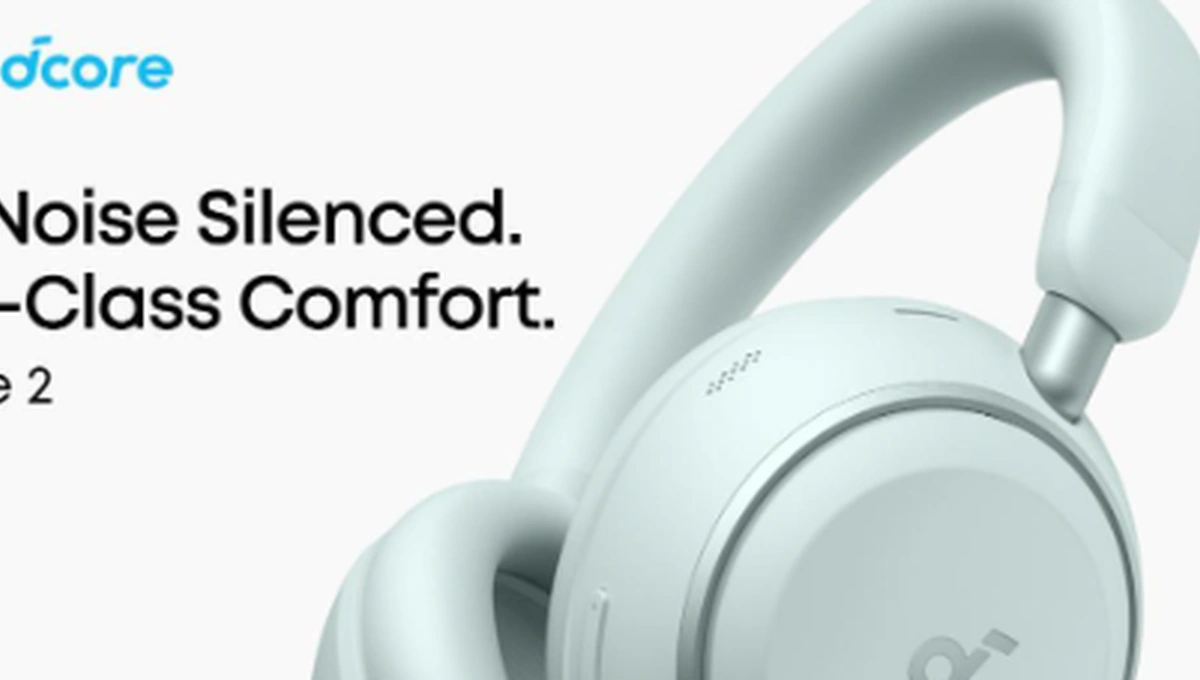
The soundcore Space 2 is designed for this kind of steady wear, with an ergonomic headband and upgraded protein leather ear cushions that use slow-rebound memory foam to relieve pressure. When your headphones feel comfortable and stay in place, you can focus on speaking naturally instead of constantly correcting the fit.
Reduce Background Noise and Improve Your Calling Environment
Choose a Quiet Location and Minimise Ambient Noise
Your environment strongly influences how clearly the other person hears you. For better wireless headphone call quality, move to a quieter space before answering or placing a call. Turn off nearby fans, lower music or television volume, and close windows if traffic or wind noise is noticeable.
Hard, echo-prone rooms can also make speech sound less distinct, so softer surroundings with curtains, carpets, or upholstered furniture often help. If you are outdoors, face away from the wind and avoid busy roads or crowded areas. Even excellent headphones cannot fully overcome loud background noise reaching the microphone.
Reducing ambient sound at the source gives your voice a cleaner signal and improves speech clarity more effectively than trying to fix it afterward.
Use Noise Reduction Features to Make Your Voice Stand Out
Noise control features can improve the overall calling experience when used correctly. Active noise cancelling mainly helps you hear the other person more clearly by reducing surrounding distractions, which often leads you to speak at a steadier, more natural level. On models with advanced noise management, this can be especially useful in transit, offices, or shared spaces.
The soundcore Space 2 uses a 4-stage low-frequency noise cancelling system designed to reduce sounds such as engine noise and environmental rumble, helping create a calmer listening environment during calls. App-based sound settings can also help if available, but avoid extreme EQ changes while calling. Prioritise settings that keep voices clear instead of boosting bass or other frequencies unnecessarily.
Check Bluetooth Connections and Audio Settings
Maintain a Stable Bluetooth Connection During Calls
A weak Bluetooth connection can cause dropouts, robotic audio, or sudden changes in call quality. Keep your phone or computer close to your headphones, ideally within the same room, and avoid physical barriers such as thick walls, metal surfaces, or crowded bags.
Wireless interference from other devices can also affect performance, so disconnect unused Bluetooth accessories when possible. If call audio becomes unstable, turn Bluetooth off and on again, then reconnect your headphones. Restarting both devices can clear temporary pairing issues as well.
Make sure your bluetooth headphones have enough battery before important calls, because low power may reduce performance. Keeping firmware updated through the companion app can also improve connection stability and call handling over time.
Adjust Device Settings and Check Headphone Compatibility
Correct device settings are essential for clear calls. First, confirm that your wireless headphones are selected as both the input and output device in your phone, tablet, or computer audio settings. If the wrong microphone is active, your voice may sound distant or echoey.
Check call volume separately from media volume, since they often use different controls. Keep your device operating system and headphone firmware updated to maintain compatibility and fix audio bugs. If your headphones support app controls, review microphone, call, and connection settings there as well. For best results, test the headphones with your main calling apps after setup.
A short test call quickly reveals whether audio routing, permissions, and Bluetooth profiles are all working properly.Comfort matters too, because headphones that sit securely are less likely to shift during calls and affect microphone placement. Features like active noise cancelling can also help create a more focused calling experience by reducing distractions around you.
If your calls sound muffled, distant, or inconsistent, these simple steps will help improve clarity for both you and the person on the other end.